Your data stays on your device.
Every expense you log is stored on your phone, not in the cloud. No accounts. No sign-up. No expense data in the cloud. If you uninstall the app, your data is gone — there is no backup we hold.
An expense tracker that doesn't track you.
Log expenses in seconds and discover where your money goes.
Every expense you log is stored on your phone, not in the cloud. No accounts. No sign-up. No expense data in the cloud. If you uninstall the app, your data is gone — there is no backup we hold.
Mora requests zero permissions from your phone — no camera, microphone, photos, contacts, or location. The only thing it sends is an anonymous check to confirm whether you're on Pro. What you spend never leaves your device.
Open Mora, pick a language and currency, start logging. That's it. No email signup. No password to forget. No "verify your phone number." If you don't want a relationship with us, you don't need one.
8 languages, 130+ currencies, native to wherever you are. Whether you're in Tokyo, Bogotá, Berlin, or anywhere else, Mora speaks your language and counts in your currency. No "USD only" assumptions. No region locks.
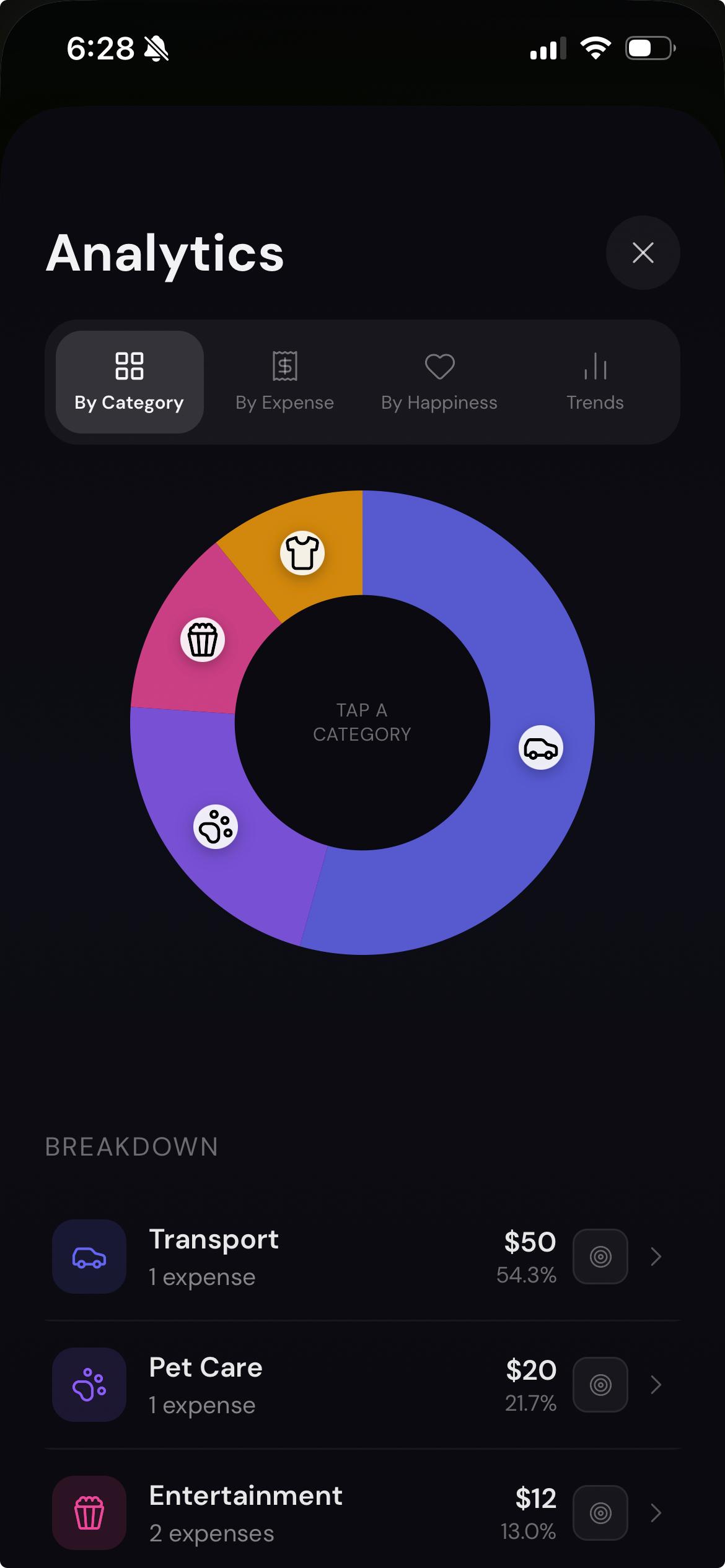
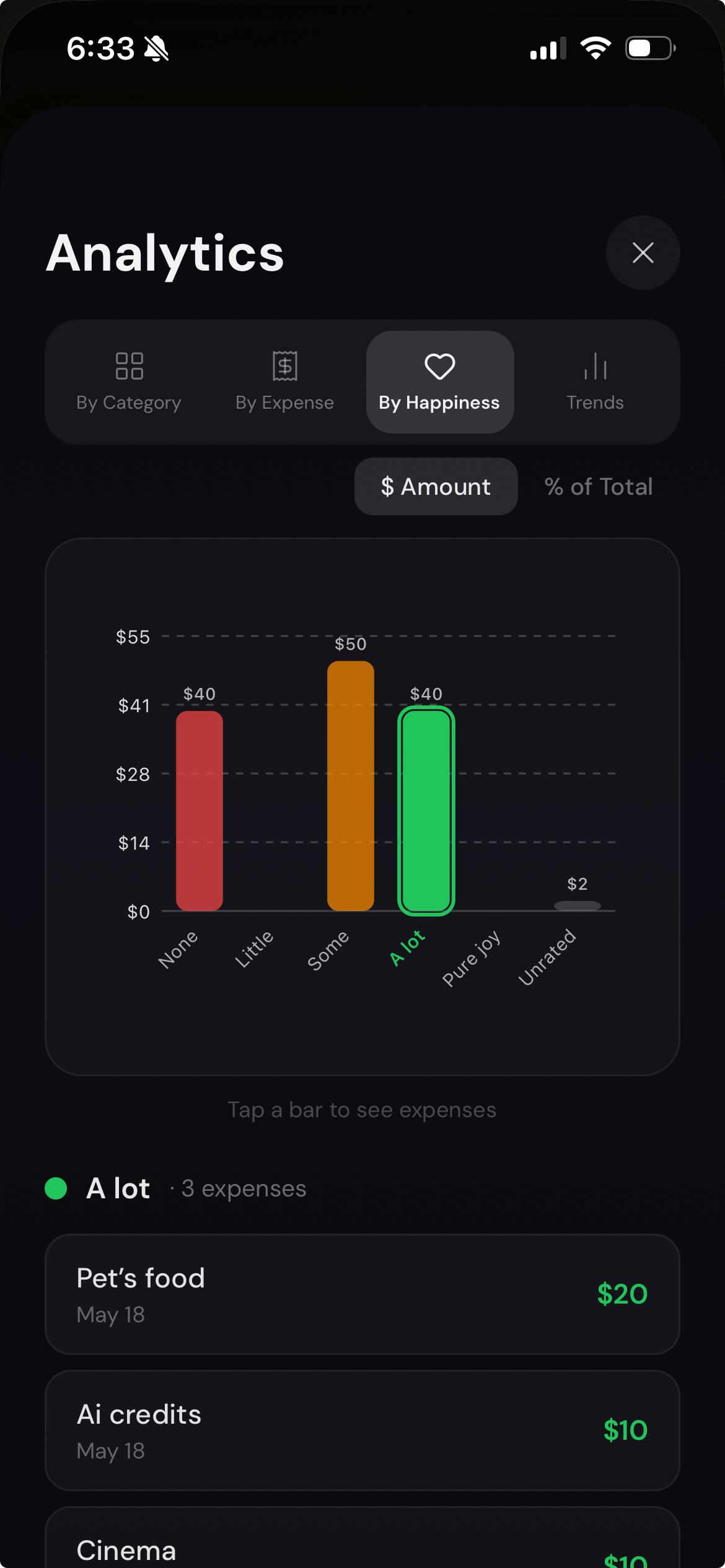
Logging is only useful if you can see the patterns. Mora gives you four lenses on your spending — each one tells a different story.
By Category. See which buckets your money is going to. Rent, groceries, entertainment.
By Expense. Drill into individual purchases. Find the small things adding up.
By Happiness. Rate each expense on how much joy it brought you. See whether what you spend on actually makes you happier.
By Trends. Watch your spending shape over weeks and months.
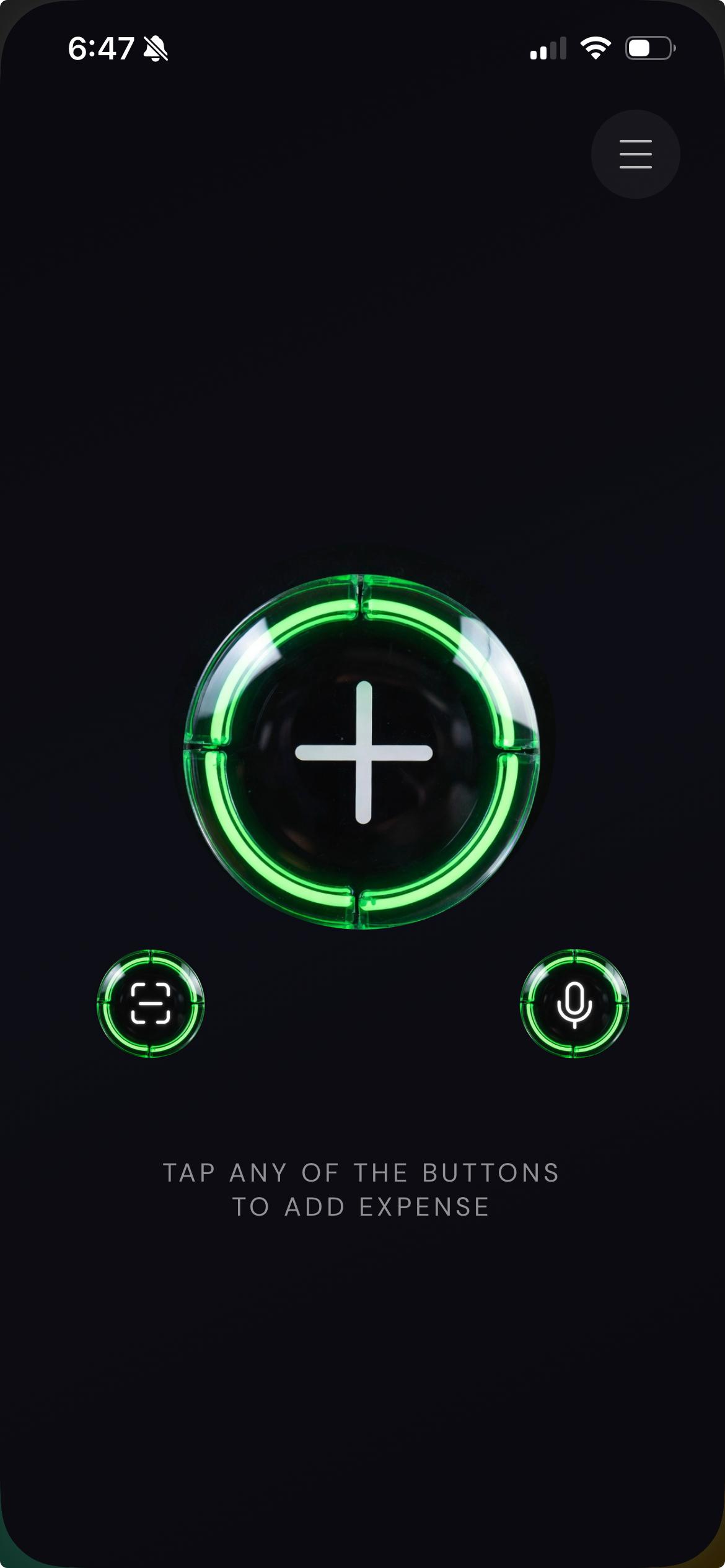
The faster it is to log an expense, the more likely you'll do it. Mora keeps it to a few taps — no friction, no forms.
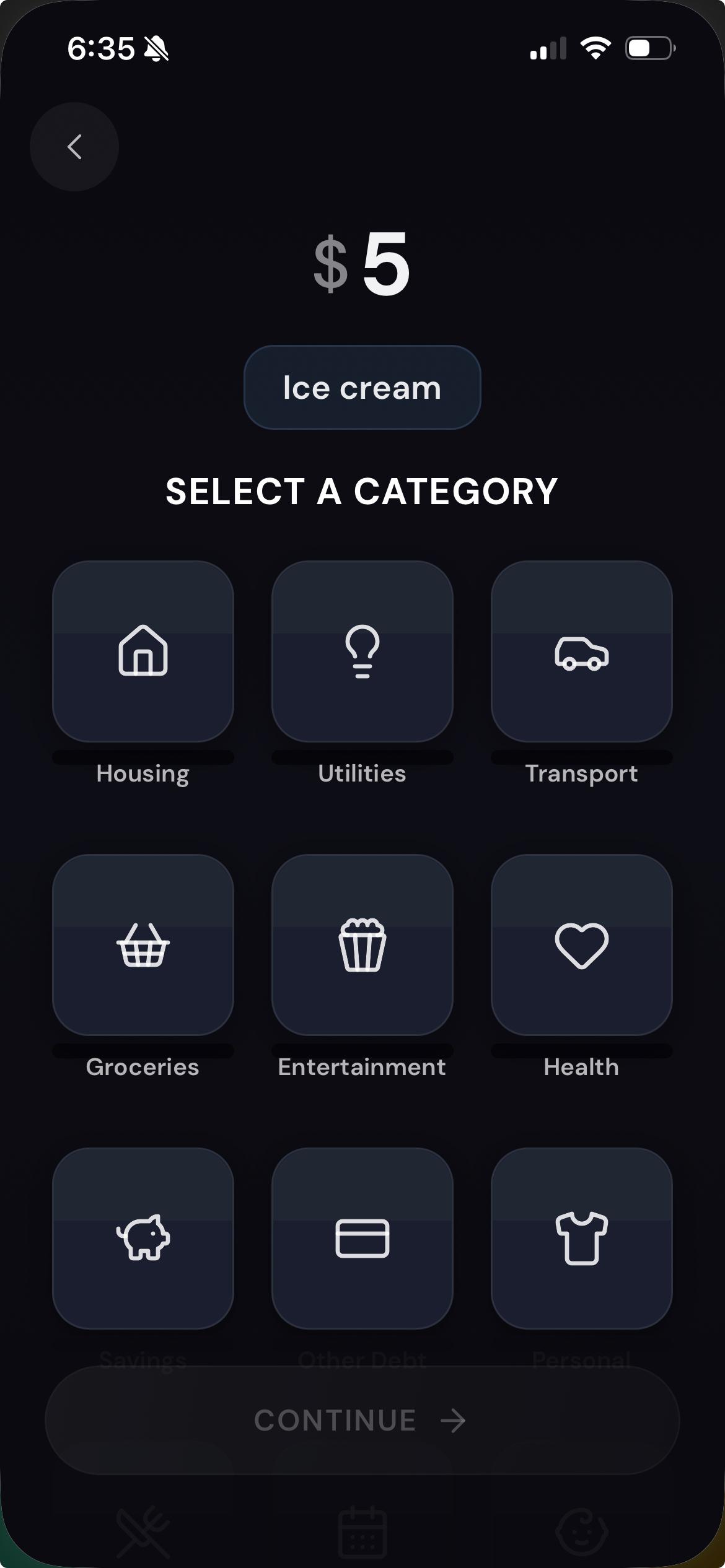
Type it. Tap the + button, pick a category, enter the amount. That's it.
Mora doesn't just track what you've spent — it helps you anticipate what's coming.
Recurring expenses. Set up your monthly subscriptions and bills once. Mora prompts you to log them when they're due.
Budgets. Set monthly limits per category. See progress at a glance, before the month is over.
Mora isn't a black box. Every expense you log is yours, and you can take it with you anytime.
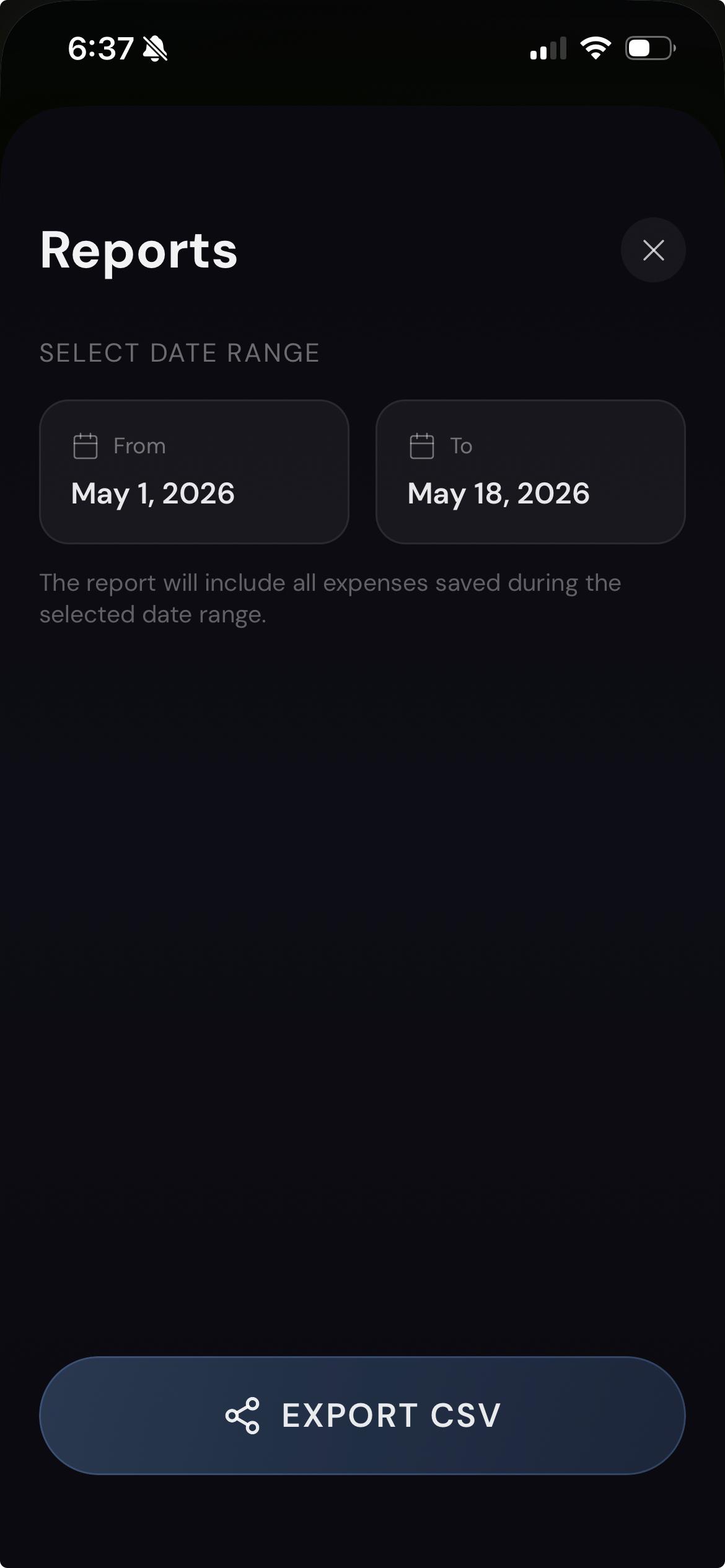
CSV export. Pick a date range, get a clean CSV file. Open it in Excel, Google Sheets, Numbers, or hand it to your accountant. No conversion tools required.
Try every Pro feature free for 7 days when you download the app. No card required.
$0
Forever
Annual subscription
Billed once a year · See your local price in the App Store
One-time purchase
Pay once in the App Store · Yours forever
Payment processed through the App Store. Subscriptions can be cancelled anytime in App Store Settings.
Mora is available on iOS (iPhone). Android support is coming. Watch this space.
No. Mora has no accounts, no signup, and no login. Open the app, pick your language and currency, and start using it.
Yes. Logging, analytics, categories, budgets, and CSV export all run on your device with no connection. Mora touches the network only for a brief anonymous check of your subscription status.
Every Pro feature, free, for 7 days from your first install. No credit card. No automatic charges. After the 7 days, Mora keeps working — it reverts to the Free tier limits unless you upgrade to Pro.
Yes. Both are in Settings. Change your language at any time, and change your currency to any of the 130+ supported options. Existing expenses keep their original currency.
Mora's Free tier covers the basics: 15 expenses per month, 6 default categories, basic analytics, editing the last 30 days, unlimited CSV export and text search for your expenses. Pro removes every limit and adds budgets per category, custom categories, advanced analytics with custom date ranges, and date filters on expense search.
The Free plan lets you edit or delete expenses from the last 30 days. Older expenses become read-only. Pro removes the time limit — edit or delete any expense, anytime.
In Mora, open the menu (≡ icon, top right) → Settings → Plan → Upgrade. Pick Annual or Lifetime, complete the purchase through the App Store. Your Pro features unlock immediately.
Mora keeps working. After the 7 days end, your access to Pro features stops and the app reverts to the Free tier limits (15 expenses per month, 6 default categories, last 30 days of editing). Your existing expenses, settings, and categories are preserved — nothing is deleted. You can upgrade to Pro any time to restore the unlocked features.
Pro Annual subscriptions are managed through your App Store account, not in Mora itself. Open Settings on your iPhone → tap your name at the top → Subscriptions → Mora → Cancel. The subscription stays active until the end of your current billing period. Pro Lifetime is a one-time purchase — there's no subscription to cancel.
In Mora, open the menu (≡ icon, top right) → Settings → Help & Support → Restore Purchases. The app checks with the App Store and re-activates your Pro features. Use the same Apple ID you used to buy Pro. Works for both Annual and Lifetime.
On your device. Every expense, category, budget, and setting you create in Mora lives on your phone — not on a Runo server, not in the cloud, not anywhere we can access. Mora uses your phone's local storage to keep everything offline by default.
The only data that leaves your phone is:
That's it. No expense data. No analytics. No crash reports. No behavioral tracking. Nothing that reveals what you've logged.
It's gone. Because everything lives on your device and there's no cloud backup, uninstalling the app deletes your data along with it. If you want to keep your records before uninstalling, export your data to CSV first. To do so: open the menu (≡ icon, top right) → Reports → Export CSV.
Currently, Mora data doesn't transfer between devices. To preserve your records when switching phones, export your data to CSV before changing devices, then install Mora fresh on your new phone.
No. Runo doesn't operate any server that holds your expense data, and Mora doesn't send your expenses anywhere. The privacy isn't a promise — it's the architecture.
Yes. The Free plan includes 6 default categories: Housing, Utilities, Transport, Groceries, Entertainment, and Credit Card Payment. Pro unlocks all 19 built-in categories plus custom categories you can create with your own name. You can also re-categorize any expense later by tapping on it in the History page. Free users can re-categorize expenses from the last 30 days; Pro users can re-categorize any expense at any time.
The Credit Card Payment category is a transfer, not a regular expense. When you pay your credit card bill, you're not spending new money — you've already logged the underlying purchases (groceries, restaurants, gas, etc.) as individual expenses earlier. Counting the payment again would double your totals.
So Mora treats it specially:
When you select this category for the first time, Mora shows a short banner explaining the behavior.
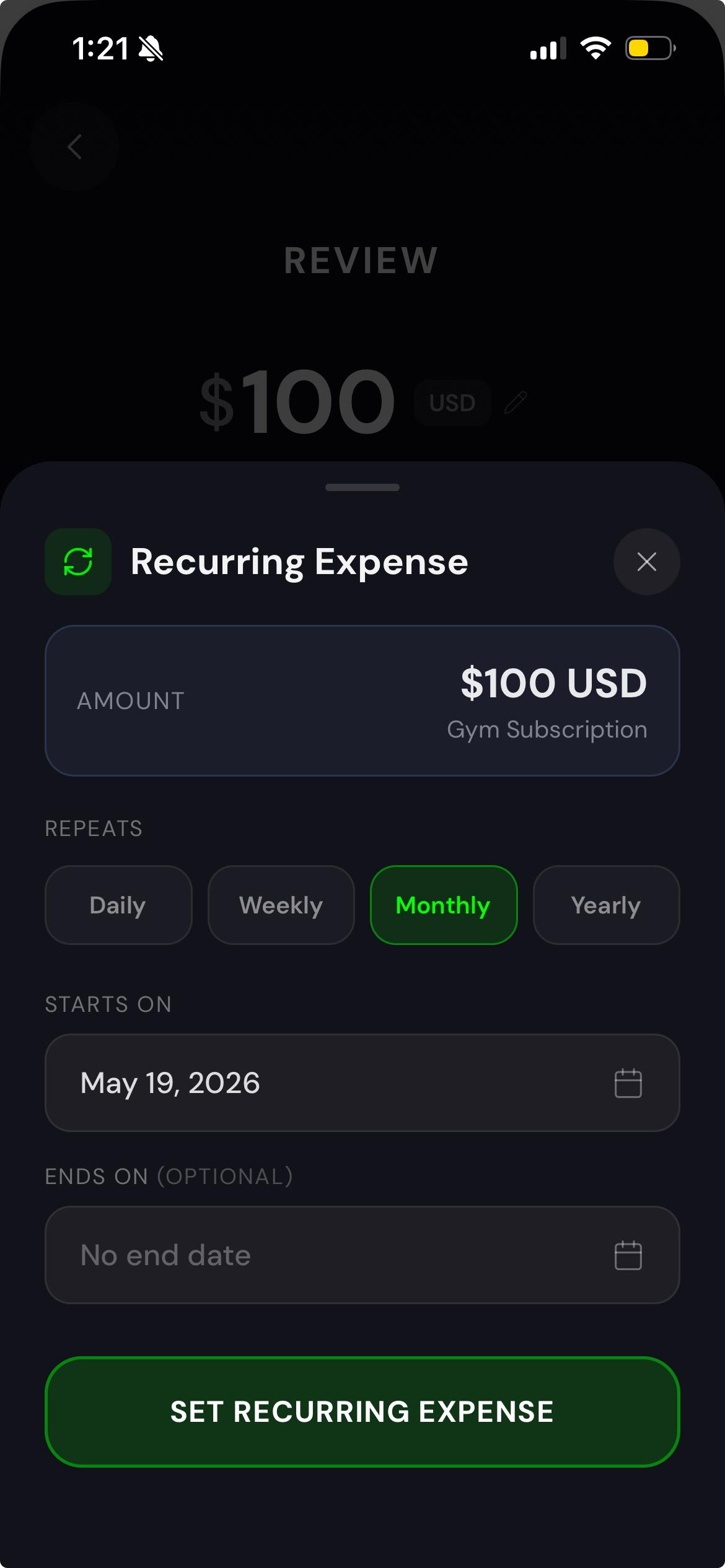
Yes. To set up a recurring expense, log an expense as usual, then on the review screen, open the Recurring Expense option by tapping the "Is this a recurring expense?" button. Set the amount, repeat frequency (Daily / Weekly / Monthly / Yearly), and start date. You can optionally set an end date or leave it open. Mora will prompt you to log the expense when each due date arrives.
Yes — on Pro. You can set monthly spending limits for any category.
To set a budget: open the menu (≡ icon, top right) → Analytics → By Category tab. Below the pie chart you'll see your categories in the Breakdown list; tap the target icon next to any category name to set its budget. If the category you want isn't shown (categories only appear after you've logged at least one expense in them), tap "Set budget for other categories" below the chart.
Once set, you'll see your progress directly in the Breakdown view: a progress bar fills as you spend, and the percentage updates in real time. When you're under budget, the bar shows green. When you exceed it, the bar overflows and turns red (green = on track, red = over budget). Only the bar and percentage change color — the category icon keeps its assigned color.
Budgets are set per currency. When you view Analytics filtered to a currency, you see and set budgets for that currency. A category can have a budget in more than one currency — each tracks only expenses in its own currency. Mora doesn't convert between currencies.
When you log or review an expense in Mora, you can optionally rate how much happiness or value it adds to your life. The scale has 5 levels, each represented by a heart icon:
The rating is optional — skip it if you don't want to rate. Over time, Mora's analytics (in the By Happiness tab) show you which categories and which kinds of expenses bring the most value, and which don't. It's a quiet way to see whether your spending actually aligns with what you value.
Open the menu (≡ icon, top right) → Reports → Export CSV. You'll get a clean CSV file with all your expenses for the selected date range. The columns are: Date, Name, Amount, Currency, Category, Notes, and Happiness Rating. Open it in Excel, Google Sheets, Numbers, or any spreadsheet app.
Available on every tier — no row limits, any date range.
Not yet. Mora doesn't currently support importing from other expense apps. If you're switching from another tracker, the most reliable approach is to start fresh in Mora — or import expenses manually.
Mora is made by Runo HQ LLC, a company designing simple, useful apps that respect their users. Mora is the first app from Runo. We're legally incorporated in the United States.
Email admin@runohq.com. We respond as quickly as we can. For feature requests or feedback, the same email works — we read everything.
Yes, Android support is coming. Watch this space for updates.
Your data is yours, regardless. Because Mora stores everything on your device — not on a Runo server — the app continues to work even if Runo stops operating, until your phone's operating system stops supporting it. Your expense history, settings, and exports stay accessible. If you've paid for Pro, you keep Pro for as long as the app runs.
This is by design, not by accident. We built Mora so that you don't depend on us to keep working.
Private. Useful. Yours.
Questions? See our FAQ above. Or email admin@runohq.com .